Holiday Card Winter 2013-14

2013 has been a huge amount of fun. We were featured in major magazines and blogs, discovered some major artists using MIDI Designer, and got a ton of love from our users on all 7 continents in a ton of different languages. We also did two partnerships (with Casio EMI for the Casio XW and with Antares for the Peavey AT-200).

We also pushed the platform forward a lot (check the Change Log!), doing over 10 releases with major features in just one year.

And we’ve had some amazing interactions with our users. One of a small group of outstanding and consistent users is Chris Gretton, who designed the JD-990 layout for MIDI Designer and a ton of other stuff (Google “popup” and “MIDI Designer”). Chris has been very influential in the design features of just about every release, but in the weeks leading up to the holidays, he really helped us to understand what “design heads” need to get from MIDI Designer. And 1.6 responds to those needs (coming soon).

From a design perspective, however, MIDI Designer is a closed Universe. It’s hard to make a Holiday Card using MIDI Designer, for instance. This did not deter Chris, however, but he might have had to resort to a bit of “shopping” (we suspect, but you never know)… Here’s the holiday message/gag he sent us today:

With all of this new Panel stuff, shapes and custom pages, I thought I would have a go at making a top of the range, photo realistic Christmas Card. Can’t be too hard surely….

1. Make blank page

holiday-1

2. Start putting small shapes and panels on the page roughly in the shape of a (photo realistic) Christmas scene…

holiday-2

3. A few minutes later, some more random shapes and panels (and a cup of tea)

holiday-3

Tadaa! Easy job! (Don’t believe of word of the above tutorial if I were you!) 😀

Light hearted jests aside, Merry Christmas.

Thank you Chris Gretton! Then we took the final scene, branded it a bit, and make the text i8n friendly.

holiday-4

A huge heartfelt thank you and happy holidays to all of our users and potential users (all living beings, basically)… we owe you a huge debt of gratitude, and we’re moving forward with MIDI Designer as fast as we can to pay that back.

And a special thanks to all of our users that have generously dedicated their intellect and time to testing and talking about MIDI Designer. One user really can make a huge difference.

THANK YOU AND HAPPY NEW YEAR!

Which Devices Are Left Behind by iOS 7?

MIDI Designer Pro and Lite are ready for iOS 7 as of version 1.5.6 (released yesterday, September 17, 2013). Version 1.5.5 will work on iOS 7 and continue to look like it did on iOS 6. If you have any problems, please upgrade to MIDI Designer 1.5.6 and get in touch. [2014-06-03 Update Confirmed: Users experiences NO problems with our iOS 7 Upgrade]

But enough about MIDI Designer! What about iOS? Which devices get left behind?


Up to iOS 6 Only

iPhone 3GS
4th generation iPod touch


Up to iOS 5 Only

iPad
3rd generation iPod touch

Up to iOS 7 Only

iPhone 4 (not great with iOS 7, apparently)


Sources

Business Insider on iOS 8 Compatability
iOS 7 Compatibility
iOS 6 Compatibility
iOS 5 Compatibility

Introducing MIDI Designer 12: Less Is More

MIDI Designer: Universally Praised

MIDI Designer Pro and Lite have been on the App Store since January of 2012. They have gotten a lot of love from artists, engineers, hardware/software manufacturers, and the press [ check out the praise ]. But sometimes, less is more…

Embrace the Simplicity

Sometimes you need a professional MIDI controller, but with just a few controls. MIDI Designer 12 provides the same rock-solid platform, ease of use and awesome playability with just 12 controls. Embrace the simplicity.


Now available for an introductory price of $.99 in your country’s App Store.
dream | create | play

What’s the difference between Pro, Lite and 12?
[ answer ]


MIDI Designer Lite (Free)


MIDI Designer 12


MIDI Designer Pro

MIDI Designer User on the Peavey AT-200

Part 1 of 2

[Go to part 2 of 2]

We’ve been dialoging with a user about the Antares/MIDI Designer integration. As a small startup, we learn a lot from our users. Here is user Marty, educating us on the Peavey AT-200 integration.

Antares writes their instrument emulation software in three ‘packages’ … Essential Pack ($99), Pro Pack ($199) and Complete Pack ($299) … each of which features various instruments, tunings and features.

The instrument samples are truly amazing, being taken from some very expensive guitar models costing tens of thousands of dollars, each. You really have to hear the sound produced by this software’s instrument samples to understand what this means for average guitarists like me.

Basically, I purchased my Peavey AT200 guitar for $420 from Amazon (they’ve since raised the price) plus $45 for a special midi Y-cable and $50 for a particular midi converter (that will permit two way midi and let software be transferred from the Internet and into the guitar) and $20 for the MidiDesigner software for my iPad 3. First, I had to emulate a Windows PC on my 15″ MacBook Pro since their software won’t be loaded on a Mac (yet?). Then their Internet software purchase and transfer into the guitar. I purchased the top $299 Complete Package and I’m hoping they add even more instrument samples, eventually.

Once the software is loaded (one time) into the guitar, you won’t need the computer except for upgrades. After that, you can use either what they call “fret control” … basically pressing one knob on the guitar and activating a feature by striking a particular string and while pressing down a particular fret in combination and then releasing that special knob … for instance, to activate the Acoustic Guitar model, press the guitars volume knob and strike a bass G note (sixth string, 3rd fret) and while it is ringing, release the knob.

Obviously, using the iPad with Midi Designer makes these tasks much faster and easier to accomplish than the “fret control” method does. The same midi box, Y-cable but now the iPad (with USB adapter) controls the guitar’s features simply and effectively. It also makes it simple to combine many features into pre-sets … you can select a guitar model’s pickups, select the pickup switch position, the tuning, string doubling style, capo setting, etc. and setting this in Midi Designer as a Preset which can then be activated either by tapping a ‘fret control preset’ or just pressing one of the available, numerical presets in Midi Designer.

The only reason I would like to have an iPhone version of the software is that I always carry my iPhone with me. But, I can easily live without it.

Actually, Marty found one and emailed us back! [link]

I hope this explains how the Midi Designer fits into this amazing guitar package?

Huge thanks to Marty for the help!


Antares tried out all the MIDI controllers for iPad and chose the very best.
Try MIDI Designer Lite for free to find out what’s so special about MIDI Designer.


MIDI Designer Lite (Free)


MIDI Designer Pro

[Go to part 2 of 2]

MIDI Designer User on the Peavey AT-200

Part 2 of 2

[Go to part 1 of 2]

We’ve been dialoging with a user about the Antares/MIDI Designer integration. As a small startup, we learn a lot from our users. Here is user Marty, educating us on the Peavey AT-200 integration.

I’ve worked with Macs since 1984 and attended all of the Boston (and even the Washington DC) MacWorld events and later the ones in NYC (nowhere nearly as good!). I miss the oldest MacWorlds which were dominated by small startups showing off (and usually selling) their amazing ‘NEW’ stuff! We used to take the entire week off, just to attend all of the impromptu events that would happen after the trade show ended. Later, all of these small companies got swallowed by a few giants which led to the end of these wonderful shows. Too bad because you would see the most innovative and amazing things there. So it goes.

Anyway, the Peavey AT-200 guitar is shown in a lot of great YouTube videos so you might want to start there. Your Midi Designer software is a real cornerstone of the Antares expansion packs for this guitar.

Here are some YouTube linked videos to watch …

Here’s a demo showing your iPad software controlling the guitar models:

Here is the original press, pre-release demo and explanation:

Here is a current Peavey AT200 sales demo and explanation:

Here’s a Sweetwater Sound demo by Rich Galagher:

This new guitar, Antares Software’s guitar model packs and your iPad software combine to make the most amazing system I’ve used in years!

A huge thank you to Marty for the quick lessons!


Antares tried out all the MIDI controllers for iPad and chose the very best.
Try MIDI Designer Lite for free to find out what’s so special about MIDI Designer.


MIDI Designer Lite (Free)


MIDI Designer Pro

[Go to part 1 of 2]

Bounce Back (2nd Press Action for Button Groups)

NOTE: Bounce Back was released in version 1.5.3 [see Change Log], available on the App Store since June 28, 2013

Bounce Back covers two quite different feature requests for buttons groups.

One was to have the option to disallow shutting off the last button, or cause the last button to resend. This is seen here in this user suggestion.

The other was a suggestion from User #1 (Mike Rosenstark) to have to return to the previous on last button press. Apparently, this was a feature on the Digitech PMC 10, although that’s hard to confirm right now (no longer in production).

The feature is called Bounce Back because of this suggestion (and it sounds cool, too). Instructions below.

English

Spanish

Set It Up

  1. Create a dynamic control (knob, slider, crossfader or the axis of an X/Y pad)
  2. Make it a supercontrol
  3. Add all the buttons of interest as subcontrols. Now you have a button group.
  4. Now use Relationships → Options as Super → Button Group 2nd Press

Options

  • Button Shuts Off — second tap turns the selected button off. Now all the buttons are off.
  • No Action (Exclusive) — second tap does nothing. After initial press, one button is always on
  • Resend (Exclusive 2) — second tap resends on value. After initial press, one button is always on
  • Bounce Back to Previous Button — second tap selects previously selected button. After initial press, one button is always on
  • Bounce Back to First Button — second tap selects first button in button group. After initial press, one button is always on
  • Bounce Back to Last Button — second tap selects last button in button group. After initial press, one button is always on

Control Copies

Control Copies

  • Make multiple instances of a control (Actions -> Copy)
  • Move them to different pages
  • Size and shape them as you need them, including the labels
  • Use Relationships -> Other Instances to find copies

Use Super- and Subcontrols

  • This is another way to do it, allow for different control types
  • The knob is a supercontrol of the slider… as long as the knob has only one subcontrol, the relationship is bidirectional


New Keyboard Shapes in MIDI Designer 1.5.1

New in 1.5.0

Piano Keys

In MIDI Designer 1.5.0. we introduced piano-key shapes in MIDI Designer.

New in 1.5.1: Piano Key Shape (No Cutout)

In 1.5.1, button shapes got an additional key shape to handle your keyboard ending in C. Keyboard shapes allow for all kinds of unique and new possibilities.

New in 1.5.1: Hex Keys

Hexagonal keys have been used in isomorphic or generalized keyboards since Bosanquet’s original investigation in 1875. Isomorphic keyboards have a rich history and present interesting advantages over normal (“asymmetric”) keyboards (read more about Isomorphic Keyboards at altKeyboards).

But hexagonal keys have other uses, too, including the pioneering use in drums by Simmons.

MIDI Designer users will no doubt find creative and innovative uses for hex keys.

More Shapes Coming Soon

Hex shapes and piano keys are just to get the ball rolling. Look for more shapes in the future!

Update for 1.6 (January 2014)

Circular buttons added.

Update for 1.6.1 (Coming in April 2014)

Transpose and Octave Transpose coming out now. This will give your keyboards serious playability and provide some very interesting possibilities.

Hidden Controls in MIDI Designer 1.5.1

Need for Hidden Controls: Super and Subcontrols

Supercontrols and subcontrols handle a lot of situations. Examples include:

  • button groups
  • supercontrols with a different number of steps or ticks
  • supercontrols that “gang” together several subcontrols
  • supercontrols that snap subs to a different value

Example: Button Groups

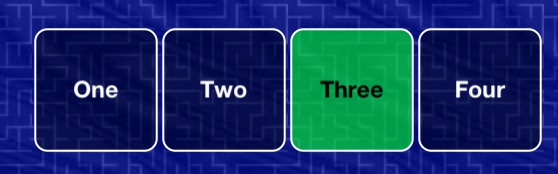
For instance, to get radio buttons, called “Button Groups” in MIDI Designer:

  • make a relative controls (knob, slider, etc.) the supercontrol of two or more buttons
  • now turning one button on will turn the others off

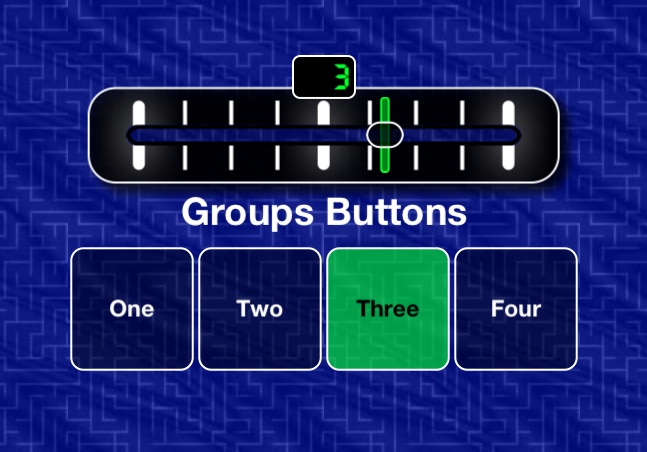
Consider this example screenshot:

The Problem

The crossfader can change the buttons, but for many users, it’s not necessary.

The Solution: Hide in Performance

In design mode, select Hide in Performance

Now when you switch back to performance mode, the crossfader is hidden.

Other Use Cases

In other situations, or most situation, it’s a subcontrol that you will be hiding in performance mode. While the subcontrol does the actual sending of MIDI messages in most cases, the user does not interact with it.

Take Away

Use Hide in Performance for any situation in which a super- or subcontrol does not need to be presented to the user in performance mode.

Named Ticks, New in MIDI Designer 1.5.1

This article applies to all dynamic controls: Knobs, Slider, Crossfaders, and XY-Pads. Named Ticks is a new feature in 1.5.1 (May 2013). Ticks have always been a feature of MIDI Designer.


Normal Ticks

Before named ticks there were always ticks in MIDI Designer.

By default, a knob has 128 ticks (or “steps,” from 0-127).

Adjust Normal Ticks

In MIDI Designer you can can adjust ticks by adjusting:

  • number of ticks for the control
  • display min and max of the control
  • MIDI min and max of the control

By default, a knob has 128 ticks, a display min-max of 0-127 and a MIDI min-max of 0-127.

You can create a lot of what you need this way.

What You Can Do With Normal Ticks

  • Make a full-range knob that goes from -5 to +5.
  • Create a half-range slider that goes from 0-500 by 10s.
  • Create a crossfader that goes from -10 to 0 and sends 0-127.


Named Ticks

Named Ticks allow you to define each tick (or “step”) of a dynamic control. Define as many ticks as you need. Each tick has:

  • a MIDI value
  • a Display value
  • a Name

MIDI Designer also provides a rich editor for named ticks. The editor provides automatic re-numbering and direct text entry.


More Than 1000 values in MIDI Designer | Values below -99 in MIDI Designer | Values above 999 in MIDI Designer