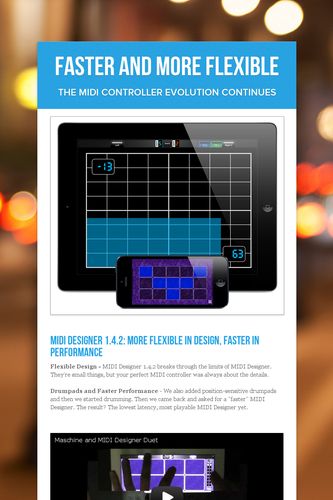
Layering in MIDI Designer

MIDI Designer release 1.5 introduces front-back layering in MIDI Designer. This means, simply, that you can:

  • put a control on top of another one (overlapping or completely enclosed)
  • consistently layer: your layering will not change in performance mode and is saved with the layout.


Layering

How to Layer

  • When a control is touched in Design Mode, it is automatically brought to the front
  • To send a control to the back, use Actions -> Send to Back


Layering


Notes

  • On iPad, controls that span both pages cannot be layered behind controls on the right page. This problem currently has no solution and typically affects only one-big-page users.
  • Panels do not enter the layering scheme for MIDI Designer. They are always behind controls. If your panels ever appear over the controls, switch pages and switch back. This is a small defect in 1.5 that will be fixed soon.

Piano-Key Shapes in MIDI Designer 1.5

MIDI Designer 1.5 introduces several new button features.

Set It Up

  1. Make a button
  2. Change its display type to ‘Piano C/F’ (there are a few others)

Piano Key Display Option

Optional

  1. Change its MIDI Message type to Note-On/Note-Off
  2. Change its type to “momentary”
  3. Hide its label (either change it to nothing, or use “Hide Label” in the label properties)

Notes

  1. Don’t make several and then size them. Make one and then use make-similar
  2. You can use the “Drumpad” type for position sensitivity.

Stubby Piano Keys

MIDI Designer Spotted in Berlin: Electro Band!

Electro Band

Video reviews aside, this is one of the most professional videos of MIDI Designer that I’ve seen. First, who is Electro Band? Here’s a description of the band’s Facebook blurb translated to English. But make sure to check out their interesting, interactive website.

When the violin hits in this video (at about 0:33) you’ll understand just how awesome it is. While I’m glad that it’s a pro video using MIDI Designer, I’m even happier that it’s really fun to watch and listen to. The video:


http://youtu.be/v8_tNoowlWs

Is That Really MIDI Designer?

So, the views of the iPad in the video are pretty quick, to say the least. It does look like MIDI Designer Pro (or Lite unlocked, which is Pro), but I wanted to see the layout. Glad I asked! Here’s a beautiful photo of the setup. Note the presence of the Korg KP3 Effects Sampler, which I’ve been in love with since about 2007. It’s not that unlikely a coincidence, but it’s still a very cool coincidence.

Thank you Electro Band for chosing to use MIDI Designer your setup, and huge congratulations on this fun video!

MIDI Designer is the go-to professional MIDI controller platform for iOS. Electro Band fuses technology and art.

Hardware Connections and New Lightning Connector

I’ve been asked by several users what options are available for the iPad mini, iPod touch 5G and iPhone 5 to connect via hardware (both to traditional MIDI targets and directly to a computer).

I consulted with iConnectivity and Line 6, both of whom said that either of these two adapters should work:

Lightning to 30-Pin Adapter [at Apple.com here] for $30

Lightning to 30-Pin Adapter

Lightning to 30-Pin Adapter [at Apple.com here] for $40

Lightning to 30-Pin Adapter

Test With Line 6 MIDI Mobilizer II: Passed

Test With IK Multimedia iRig MIDI: Passed

I’m still working on this and will update this post as new information becomes available.

Conclusion

You can use your legacy MIDI hardware with the Lightning connector with the standard adapter, and this applies to the iPod touch 5G, iPhone 5, iPad mini and iPad 4th generation. This is all great news (except for the money part). As always, if you have comment, questions, or any other feedback, please get in touch via the contact page.

Why Do I Need an Extra Control for Button Groups?

A user asked me today

Another thing came to my mind: some kind of “exclusive” toggle mode for multiple buttons would also be nice. Maybe I have overseen such a feature, but I noticed it while I was creating the buttons for the different waveforms for the Oscillators. Currently I have to turn every button of when I want to activate another.

To which I replied

Google button groups in midi designer. I’ll help if you need of course. Thanks!!!

Sent from my iPhone

Which no doubt led the user to the blog entry on button groups.

Then the user asked the question that I would’ve asked:

That’s the feature I tried to describe :). But why do I need an extra knob or slider for it?

And here’s my answer:

It’s a great question. The short answer is “just because” but the long answer has to do with integrity and with not being able to guess how users are going to use things. The button-groups feature works through a super-knob so it gives you all kinds of flexibility (none of which I predicted). For instance, you could have a super of THAT knob that jumps through the entire range, or a button “stepper” that steps you through the super. You could even have the super (or another super) be controlled by the accelerometer!

The other part of the answer is for efficiency: by doing it in this way I avoid adding additional UI elements in design mode. There’s no mention in the UI of button groups and almost none of steppers. Yet people are using these features in their rigs without problems. You can move the clutter to your pedalboards by sliding the pages up, if you like, or put them on a different page.

What about multiple MIDI messages? That’s a huge hassle right now.

One thing that will get included as a first-level feature is multiple MIDI messages. Right now it’s a huge hassle to do that using super- and subcontrols. In fact, there will be a lot of reworking in the near future to handle a lot of user pain points around the issue of programming multiple MIDI messages. Some of these features will also add functionality.

User response:

Your tip with moving the super controls to a separate page is perfect. Thanks for the advice.

I like your attitude! It is clear to see that you are sure about your product and take customers seriously. Keep up the good work!

<<blush>> and many thanks!

MIDI Designer 1.4.0 Launches

MIDI Designer Pro and Lite 1.4.01 for iPad and iPhone has been released. Read all about it in the flyer.


Are the Lite unlocks equivalent to Pro?

Pro is unlocked for iPad, iPhone and iPod touch as soon as you purchase it.

Lite requires you to in-app purchase (IAP) to unlock for iPad, and a separate IAP to unlock for iPhone. Lite, once unlocked, has the exact same functionality as Pro.


Note to MIDI Designer Pro Users: Thanks for your patience in the day and a half it took to work out the kinks in the 1.4.0 release. 1.4.01 is everything we promised (and more).