My brother Mike has posted about Thursday’s THroNG session here, including excerpts one, two and three.
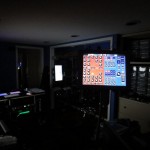
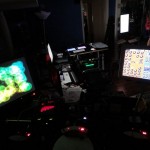
Two of the rigs are using MIDI Designer extensively. Here’s a photo of my drum rig (with Chris Dragotta in the background):
I’m using MIDI Designer 1.3.1, in conjunction with a Line6 FBV Shortboard Mark II (via USB -> Wifi -> MIDI Designer) to control my “rig” in Ableton Live 8. In this jam, I’m using three Korg Wavedrums and one Native Instruments Battery instance as the sound sources. These go through a a mix of Ableton and Guitar Rig effects (using lots of cool signal routing, of course). I’m also using my own custom “lookahead loopers” which use Ableton’s Simple Delay and track routing (trick: a track that feeds back when you turn the looper on).
The other rig is Mike’s guitar setup. Tonight we’ll be going over that setup and incorporating a BCR2000, via the pedalboards feature, with MIDI Designer. The exciting thing is that the BCR2000 is two-way MIDI, so… this’ll be very cool. Photos and/or videos soon!
When I work with MIDI Designer, one of the things I’m trying to do is solve things the way any user would. If that’s not possible, I submit a change request (to myself) and it gets put in a queue and maybe sometime later the product manager (me) puts it in the queue so the development team (also me) can add it to the next release. Joking aside, even if I can get a new feature added and tested in 24 hours, I still would have to wait for Apple’s approval to get it to my users, so that’s a seven-day delay, minimum. Plus, the main goal is to dogfood: I use MIDI Designer as a normal user as much as possible.
Recently, I’ve started working with CamelPhat and CamelSpace in Ableton Live, and both of these plugins allow for Program Changes. This works really nicely as you can see from the video [note that the video is using version 1.3.1 which allows for momentary buttons that step down using an inverted supercontrol]. Basically what you’re looking at is me pressing a program change button and CamelPhat (or Space) reacts and sends all the parameters back to MIDI Designer:
To achieve the program changes with CamelPhat and CamelSpace I need Ableton Live to send MIDI data back to me. This is usually not a problem: MIDI Designer (MD) sends a value and then receives that same value again. If it’s a knob/slider and your finger is on it, MD just ignores the incoming value. Otherwise, it ignores the incoming value because it’s the same as the one it just sent out.
Statement of Problem
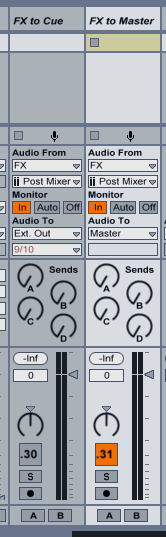
Elsewhere in my rig, I have two tracks that I want to alternate (one on or the other on).
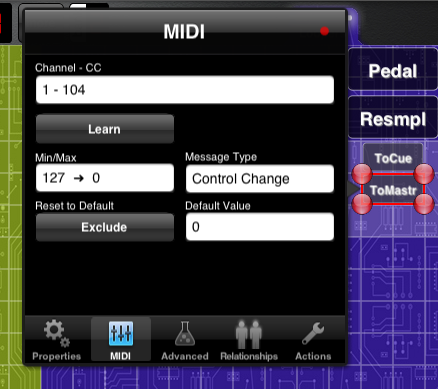
So I want Ableton track buttons 30 and 31 to alternate. So I mapped them to one button and the MIDI looked like this:
This works perfectly if I shut off the MIDI feedback that I need for my CamelPhat/Space plugins. With it, however, it’s a mess. MIDI Designer is getting told by the second one to invert the button. The end result is garbage: I need to press the button twice to get it to flip states correctly.
Solution
There are many ways to solve this in MIDI Designer, all of which are variations on the same theme: use two buttons and then “gang” them with a supercontrol. Here’s the setup. Two buttons, one of which is “backwards.” I’m doing this via the MIDI it sends out, which is the most direct way:
One button is dedicated to the first track’s on button, and the second is dedicated to the second track’s on button.
Now I group these with a supercontrol (toggle button):
Tidying Up
I hide the buttons underneath the supercontrol. The end result looks like this (on and off states):
This is a pretty specific problem, but the more general point is interesting: you can solve unique and new problems in MIDI Designer with a bit of creativity.
Later Realizations: This particular problem can be solved in Ableton Live by ordering the tracks so that the one that lines up with the button’s on-off states is to the right of its polarity-backwards sibling. Yet another option…
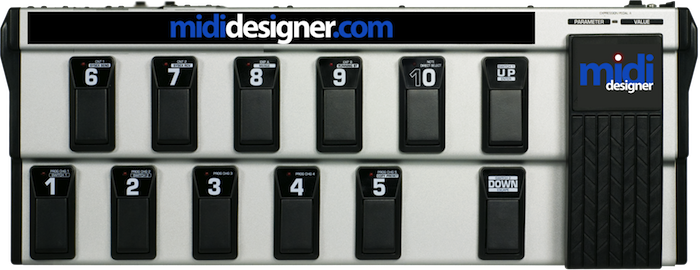
Note: Production of our own pedalboard is not on the MIDI Designer roadmap… yet. Luckily there are quite on a few on the market that we like, such as the Line6 FBV Shortboard MKII and the classic Roland FC200.
The Pedalboards feature of MIDI Designer is what makes MIDI Designer a true hardware-software hybrid. New complete article on the Pedalboard feature of MIDI Designer is here.
Version 1.3 has been approved by Apple and ready for download!
MIDI Designer 1.3 adds several new and fantastically important features to the Perfect MIDI Controller. Most of these suggestions came from discussions with users.
Ground-breaking:
• Buttons Groups open up worlds of possibilities (Blog Article and Video)
• Channel-Changer Supercontrols can make any control multi-function (Blog Article and Video)
• Renaming, deleting and ordering of presets.
Enhancements:
• Tall and long-throw sliders for more accurate control
• New “Relationships” pane allows you to understand and modify a control’s relationships
And more features and enhancements! Check it all out in the Change Log.
Just submitted 1.3 to the iPad App Store. Should take about seven days according to the rumor mill. Here’s the laptop on which 90% of MIDI Designer development happens. It’s faster than it looks:
The feature list for 1.3 is still in progress, but here are the highlights.
MIDI Designer users have spoken up and I listened. MIDI Designer 1.3 adds several new features to the Perfect MIDI Controller.
Ground-breaking:
• Buttons Groups open up worlds of possibilities (Blog Article and Video)
• Channel-Changer Supercontrols can make any control multi-function (Blog Article and Video)
• Renaming, deleting and ordering of presets.
Enhancements:
• Tall and long-throw sliders for more accurate control
• New “Relationships” pane allows you to understand and modify a control’s relationships
And more features and enhancements! Check it all out in the Change Log.
Both through my interactions with users (via email and Twitter, mostly), using MIDI Designer in my own rig, and the feedback from my test team, I begin to make small adjustments and improvements.
Here are two. The first came up because I control a CamelPhat instance in my own rig. When I send a program change from MIDI Designer, CamelPhat updates all of my controls in MIDI Designer, but the pedalboards were not getting updated. To compensate we have:
1. Subcontrols turned by hardware will spin supercontrols on pedalboard if their page is showing
2. Subcontrols on regular pages with supercontrols on regular pages will spin all supers that have only one child.
MIDI Designer introduces Channel Changers in version 1.3.
Make a multifunction control by using more than one MIDI channel. One knob controls the channel for its subcontrols.
Example
“Knob Q” controls “Wah Filter” on Channel 1, CC 42 and “Delay Feedback” on Channel 2, CC 42. “ChChger” is the supercontrol that makes Knob Q switch between functions. Knob Q will snap to its last value for “Wah Filter” and “Delay Feedback” when you switch the channel.
Set It Up
Make a knob, slider, or cross-fader a “channel changer.” Now it’s a supercontrol. Add some subcontrols and that’s it. Automatic and easy.
Check this Q&A answer for detailed instructions (on iPhone, but they’re the same).
Use It
Change the value on the knob to change the channel on the subcontrols. They snap to their previous value when they were last on that channel.
Extensions
This works for sysex (0-127) as of MIDI Designer 1.5.0 (Released April 15, 2013), too.
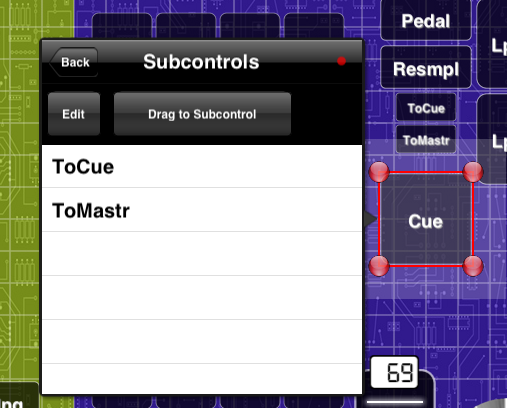
MIDI Designer’s new Relationships Pane for Controls contains Supercontrols, Subcontrols, and Other Instances (i.e., copies). Subcontrols pane allows for rearranging of subcontrols, which is essential for Button Groups.
As of June 25, 2013, Bounce Back, a new feature for Button Groups, is out. Find out more here.
What Is It?
Button groups can also be called “radio buttons.” You want a button to belong to a group of buttons. When one turns on, the others turn off.
MIDI Designer takes the radio-button concept to the next level: Momentary AND toggle buttons can participate in button groups. A knob (or slider, etc.) groups the buttons, but also lets you step through the buttons by changing the value of the knob.
Set It Up
Make a knob, slider, or cross-fader the supercontrol of two more buttons. Automatic and easy.
Use It
Press any of the buttons and the other ones in the group shut off. If they are momentary, they stay off.
Technical Details
The button that is pressed is sent LAST. Any of the buttons that does not send an off (e.g., Sysex with no “V” or Program Change Button) will only send when selected.
As of June 25, 2013, Bounce Back, a new feature for Button Groups, is out. Find out more here.