



When I work with MIDI Designer, one of the things I’m trying to do is solve things the way any user would. If that’s not possible, I submit a change request (to myself) and it gets put in a queue and maybe sometime later the product manager (me) puts it in the queue so the development team (also me) can add it to the next release. Joking aside, even if I can get a new feature added and tested in 24 hours, I still would have to wait for Apple’s approval to get it to my users, so that’s a seven-day delay, minimum. Plus, the main goal is to dogfood: I use MIDI Designer as a normal user as much as possible.
Recently, I’ve started working with CamelPhat and CamelSpace in Ableton Live, and both of these plugins allow for Program Changes. This works really nicely as you can see from the video [note that the video is using version 1.3.1 which allows for momentary buttons that step down using an inverted supercontrol]. Basically what you’re looking at is me pressing a program change button and CamelPhat (or Space) reacts and sends all the parameters back to MIDI Designer:
To achieve the program changes with CamelPhat and CamelSpace I need Ableton Live to send MIDI data back to me. This is usually not a problem: MIDI Designer (MD) sends a value and then receives that same value again. If it’s a knob/slider and your finger is on it, MD just ignores the incoming value. Otherwise, it ignores the incoming value because it’s the same as the one it just sent out.
Statement of Problem
Elsewhere in my rig, I have two tracks that I want to alternate (one on or the other on).
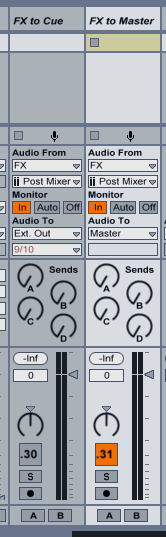
So I want Ableton track buttons 30 and 31 to alternate. So I mapped them to one button and the MIDI looked like this:

This works perfectly if I shut off the MIDI feedback that I need for my CamelPhat/Space plugins. With it, however, it’s a mess. MIDI Designer is getting told by the second one to invert the button. The end result is garbage: I need to press the button twice to get it to flip states correctly.
Solution
There are many ways to solve this in MIDI Designer, all of which are variations on the same theme: use two buttons and then “gang” them with a supercontrol. Here’s the setup. Two buttons, one of which is “backwards.” I’m doing this via the MIDI it sends out, which is the most direct way:
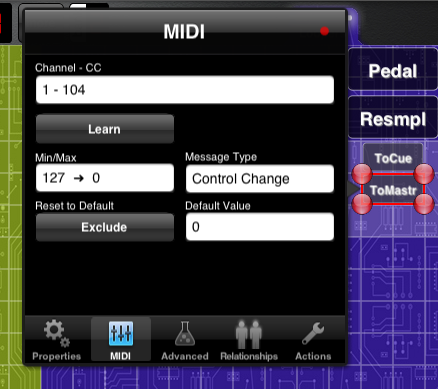
One button is dedicated to the first track’s on button, and the second is dedicated to the second track’s on button.
Now I group these with a supercontrol (toggle button):
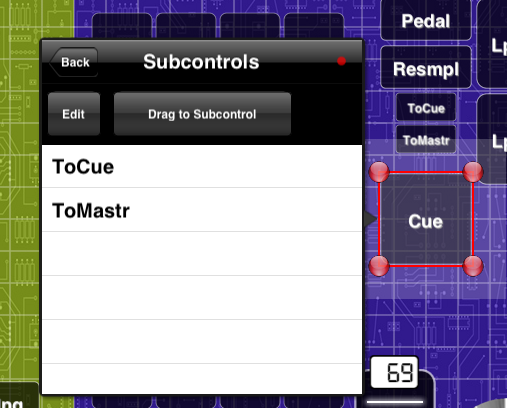
Tidying Up
I hide the buttons underneath the supercontrol. The end result looks like this (on and off states):

This is a pretty specific problem, but the more general point is interesting: you can solve unique and new problems in MIDI Designer with a bit of creativity.
Later Realizations: This particular problem can be solved in Ableton Live by ordering the tracks so that the one that lines up with the button’s on-off states is to the right of its polarity-backwards sibling. Yet another option…