Hardware Connections and New Lightning Connector

I’ve been asked by several users what options are available for the iPad mini, iPod touch 5G and iPhone 5 to connect via hardware (both to traditional MIDI targets and directly to a computer).

I consulted with iConnectivity and Line 6, both of whom said that either of these two adapters should work:

Lightning to 30-Pin Adapter [at Apple.com here] for $30

Lightning to 30-Pin Adapter

Lightning to 30-Pin Adapter [at Apple.com here] for $40

Lightning to 30-Pin Adapter

Test With Line 6 MIDI Mobilizer II: Passed

Test With IK Multimedia iRig MIDI: Passed

I’m still working on this and will update this post as new information becomes available.

Conclusion

You can use your legacy MIDI hardware with the Lightning connector with the standard adapter, and this applies to the iPod touch 5G, iPhone 5, iPad mini and iPad 4th generation. This is all great news (except for the money part). As always, if you have comment, questions, or any other feedback, please get in touch via the contact page.

Why Do I Need an Extra Control for Button Groups?

A user asked me today

Another thing came to my mind: some kind of “exclusive” toggle mode for multiple buttons would also be nice. Maybe I have overseen such a feature, but I noticed it while I was creating the buttons for the different waveforms for the Oscillators. Currently I have to turn every button of when I want to activate another.

To which I replied

Google button groups in midi designer. I’ll help if you need of course. Thanks!!!

Sent from my iPhone

Which no doubt led the user to the blog entry on button groups.

Then the user asked the question that I would’ve asked:

That’s the feature I tried to describe :). But why do I need an extra knob or slider for it?

And here’s my answer:

It’s a great question. The short answer is “just because” but the long answer has to do with integrity and with not being able to guess how users are going to use things. The button-groups feature works through a super-knob so it gives you all kinds of flexibility (none of which I predicted). For instance, you could have a super of THAT knob that jumps through the entire range, or a button “stepper” that steps you through the super. You could even have the super (or another super) be controlled by the accelerometer!

The other part of the answer is for efficiency: by doing it in this way I avoid adding additional UI elements in design mode. There’s no mention in the UI of button groups and almost none of steppers. Yet people are using these features in their rigs without problems. You can move the clutter to your pedalboards by sliding the pages up, if you like, or put them on a different page.

What about multiple MIDI messages? That’s a huge hassle right now.

One thing that will get included as a first-level feature is multiple MIDI messages. Right now it’s a huge hassle to do that using super- and subcontrols. In fact, there will be a lot of reworking in the near future to handle a lot of user pain points around the issue of programming multiple MIDI messages. Some of these features will also add functionality.

User response:

Your tip with moving the super controls to a separate page is perfect. Thanks for the advice.

I like your attitude! It is clear to see that you are sure about your product and take customers seriously. Keep up the good work!

<<blush>> and many thanks!

Crossfader Overlap

Note: In 1.5.0 and greater, this is under Relationships -> Subcontrol Options.

Crossfader Overlap is an extension of “crossfader pieces,” which has been a feature of MIDI Designer since version 1.0. You can see that in this video, which is how I fade to a speech track and back:

So the basic idea is that one knob gets spun up to its max, and at the midpoint, another knob starts dropping.

In the past, you set this up by setting each subcontrol be a “crossfader piece,” one of which is also “inverted.” This gives you a linear crossover at 50% of the range of the supercontrol.

For our lighting users, this wasn’t enough, and they asked for crossfader overlap. It’s all linear still (for now), but it gives you some options. Now you can set the overlap to anything from .25 to 1.0. This produces a crossfade that looks like this. Note: Your old crossfader pieces will be changed to .5, which is the standard crossfader overlap.

Setup is almost identical: where “crossfader piece” was located, now there’s “crossfader overlap”:

Here’s an advanced use of crossfaders:

Advanced Use of Crossfader Overlap with 4 Mics on a Field

But the takeaway is always the same: if you want it, you’ve got more flexibility and power for your rig.

Through The Fog: A and B

I’m working on rig design tonight for my own drum rig, which includes MIDI Designer (of course), Maschine, Ableton, and Guitar Rig. What I’m trying to do with my rig isn’t hit all the possibilities. In fact, I’m trying to find “a way through the fog” by simplifying.

For instance, I can apply effects to each drum, to each kit or to the whole mix. The first two of these options are too fine for me (since I play 8 kits at once) and the last one is too coarse. What I want is to be able to control what goes through which effects, but without getting lost in a sea of different effects chains.

The answer, for me, is one that I’ve come back to over the last two years a lot. It’s always the same: “Copy from DJs.” So I make A and B effects chains (which actually get joined later on and put through a Korg Kaoss pad), and routing matrix with buttons to route the drum kits to one, the other, or both.

This is exciting because it means that I can get back to some of the features I most love about MIDI Designer: those that refer to an A-B rig.

Copy A to B/B to A

In MIDI Designer, you can copy values from one set of controls to another. What this means is that if you’ve got your A chain set up with distortion on, and reverb configured in a particular way, you can COPY that to your B chain, and then change reverb and add, say, beat delay. And now you can crossfade between two effects chains that are similar, but different.

There are two relevant controls for this. One to define the B control of a control (must be on the same page, but only to set it).

And the buttons that push A values to B and vice versa.


Crossfader

Crossfaders are very particular, because they move two knobs. In the simplest case (linear, which is all we do for now) one of the knobs goes from min to max at the halfway point and stays there. The other one goes from max to min, but doesn’t start until you reach mid-turn. MIDI Designer allows you to do with any two knobs.

Now to be fair, every DAW (or at least Ableton, which I know best, and Reaper) will allow you to do some kind of crossfade. But this is a unique thing, because you’re actually building a crossfader out of parts… which you can use for other things.

I’ll need to do a video on how to set up a crossfader very soon. (In the meantime, the answer is: make the two knobs subcontrols of a third control, make one of them subtype “inverted” and make them both crossfader pieces. )

Concluding Remarks

Anyway, my original point was that in my rig I’m not trying to have all possibilities. Many times I’m trying to limit how many controls I can adjust, so that My rig is playable. This is not the only aesthetic with which you can use MIDI Designer, and I’ll do an article on User #1’s vision of MIDI Designer sometime soon.

Thanks for reading and thanks for checking out MIDI Designer!


Emoji for Your Labels!
I wasn’t aware of this until Mike Rosenstark pointed it out this morning. You can use Emoji — those cute little emoticons that the Japanese have somewhat standardized (read more in the Wikipedia article) — in your MIDI Designer labels, both on pages and controls.

Even better: you don’t have to pay for this feature. It’s already built into your iPad!

Short Instructions
Turn on the Emoji international keyboard in your iPad settings.

Long Instructions
Go to settings:

Select International:

Select Keyboards:

Tap “Add New Keyboard”:

Scroll down and select “Emoji”:

Now you can switch between keyboards using the “Globe” on your keyboard (to the left of the spacebar):

Now you can use Emoji in controls and page labels!


Note: If you’re using the Japanese keyboard, you can already access Emoji directly, but you probably know that already.

Update 2014-04-18
Emoji don’t size well, but a lot of the great stuff that does scale up can be found in the Kanji and other non-Western keyboards.

Update 2014-06-16
Emoji size perfectly well in iOS 7!

Emoji Size Perfectly in iOS 7 with MIDI Designer

Map One Button to Play and Stop in Ableton Live

User wrote me today:

i’ve another question
is it possible create a button that pressed once (turned to red) press “play” in Ableton Live, unpressed, press “stop”?

Sure! I never thought of that, but MIDI Designer allows for a lot of things I hadn’t thought of.

First, make three buttons and one knob like this:

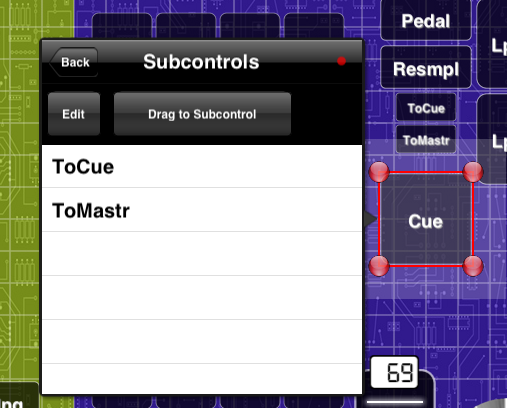
Then use the button group feature to make the knob step through the two buttons at the top. Do this by making the knob a supercontrol, and then giving it two subcontrols: stop and play (in that order, though you can reorder.

Now when the play button comes on, it turns the little play button on. Otherwise it turns the little stop button on.

Then make the big play button a supercontrol of the knob. That play button will just toggle the knob to its max (on) and min (off), which happens to be the little play button (on) and the little stop button (off).

Then I finished this post and I realized that I hadn’t actually tried this out myself with Ableton Live. So when I finally did, it was impossible to map, because I’m always sending out two commands at once (stop-play or play-stop). So I temporarily shut off the knob’s “supercontrol” button, mapped up in Ableton, and put it all back together:

This works! Now you can move the “guts” of the thing behind the big button:

Now when the big button is red, Ableton is playing, and when it’s dimmed, Ableton is stopped.

Perfect! Grazie della domanda, Italia!

MIDI Designer and Cue Mix in Ableton Live

When I work with MIDI Designer, one of the things I’m trying to do is solve things the way any user would. If that’s not possible, I submit a change request (to myself) and it gets put in a queue and maybe sometime later the product manager (me) puts it in the queue so the development team (also me) can add it to the next release. Joking aside, even if I can get a new feature added and tested in 24 hours, I still would have to wait for Apple’s approval to get it to my users, so that’s a seven-day delay, minimum. Plus, the main goal is to dogfood: I use MIDI Designer as a normal user as much as possible.

Recently, I’ve started working with CamelPhat and CamelSpace in Ableton Live, and both of these plugins allow for Program Changes. This works really nicely as you can see from the video [note that the video is using version 1.3.1 which allows for momentary buttons that step down using an inverted supercontrol]. Basically what you’re looking at is me pressing a program change button and CamelPhat (or Space) reacts and sends all the parameters back to MIDI Designer:


To achieve the program changes with CamelPhat and CamelSpace I need Ableton Live to send MIDI data back to me. This is usually not a problem: MIDI Designer (MD) sends a value and then receives that same value again. If it’s a knob/slider and your finger is on it, MD just ignores the incoming value. Otherwise, it ignores the incoming value because it’s the same as the one it just sent out.

Statement of Problem

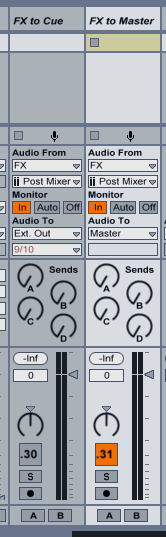
Elsewhere in my rig, I have two tracks that I want to alternate (one on or the other on).

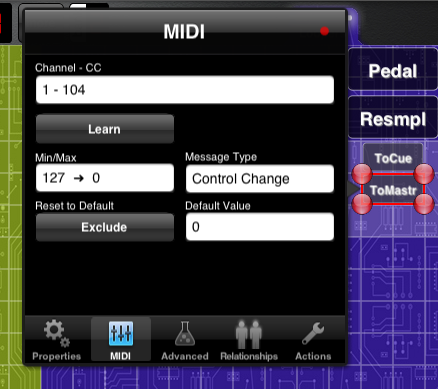
So I want Ableton track buttons 30 and 31 to alternate. So I mapped them to one button and the MIDI looked like this:

This works perfectly if I shut off the MIDI feedback that I need for my CamelPhat/Space plugins. With it, however, it’s a mess. MIDI Designer is getting told by the second one to invert the button. The end result is garbage: I need to press the button twice to get it to flip states correctly.

Solution

There are many ways to solve this in MIDI Designer, all of which are variations on the same theme: use two buttons and then “gang” them with a supercontrol. Here’s the setup. Two buttons, one of which is “backwards.” I’m doing this via the MIDI it sends out, which is the most direct way:

One button is dedicated to the first track’s on button, and the second is dedicated to the second track’s on button.

Now I group these with a supercontrol (toggle button):

Tidying Up

I hide the buttons underneath the supercontrol. The end result looks like this (on and off states):

This is a pretty specific problem, but the more general point is interesting: you can solve unique and new problems in MIDI Designer with a bit of creativity.

Later Realizations: This particular problem can be solved in Ableton Live by ordering the tracks so that the one that lines up with the button’s on-off states is to the right of its polarity-backwards sibling. Yet another option…

MIDI Designer, Ultimate Hybrid

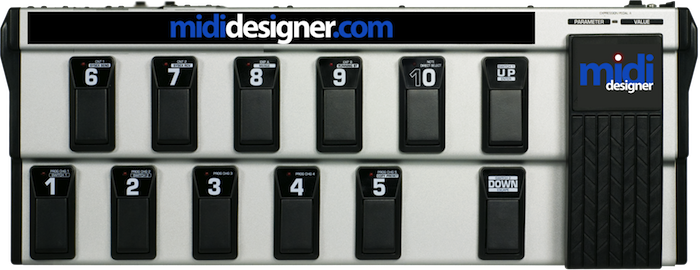
Note: Production of our own pedalboard is not on the MIDI Designer roadmap… yet. Luckily there are quite on a few on the market that we like, such as the Line6 FBV Shortboard MKII and the classic Roland FC200.


The Pedalboards feature of MIDI Designer is what makes MIDI Designer a true hardware-software hybrid. New complete article on the Pedalboard feature of MIDI Designer is here.

Also check out the rough-cut video:

Version 1.3 Adjustments to Supercontrols

Both through my interactions with users (via email and Twitter, mostly), using MIDI Designer in my own rig, and the feedback from my test team, I begin to make small adjustments and improvements.

Here are two. The first came up because I control a CamelPhat instance in my own rig. When I send a program change from MIDI Designer, CamelPhat updates all of my controls in MIDI Designer, but the pedalboards were not getting updated. To compensate we have:

1. Subcontrols turned by hardware will spin supercontrols on pedalboard if their page is showing

2. Subcontrols on regular pages with supercontrols on regular pages will spin all supers that have only one child.

If you are using these advanced features of MIDI Designer and the FAQ doesn’t answer your questions, please do not hesitate to contact me!