


Jump to Connection to Hardware Devices via USB
The Manual
The MIDI Designer Manual on ConnectionMIDI Over Lightning or USB-C Connection (New! MD USB)
MIDI Over Lightning or USB-C Connection (Audio-MIDI Setup)
Connection to Hardware Devices via USB
Want to control a synth, drum machine, or pedal from your USB-C iPad or iPhone? Here are three ways to connect it to MIDI Designer without a computer.
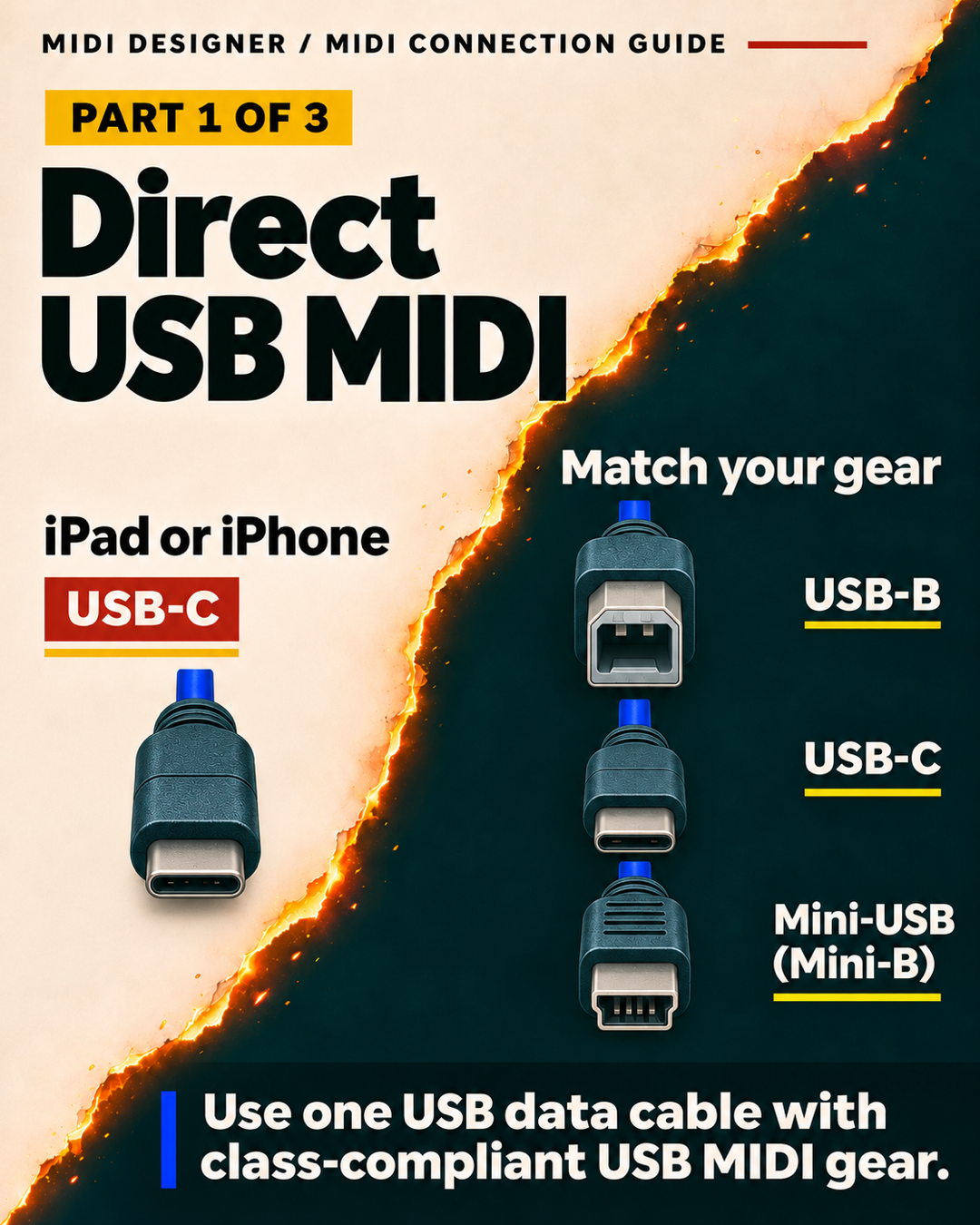
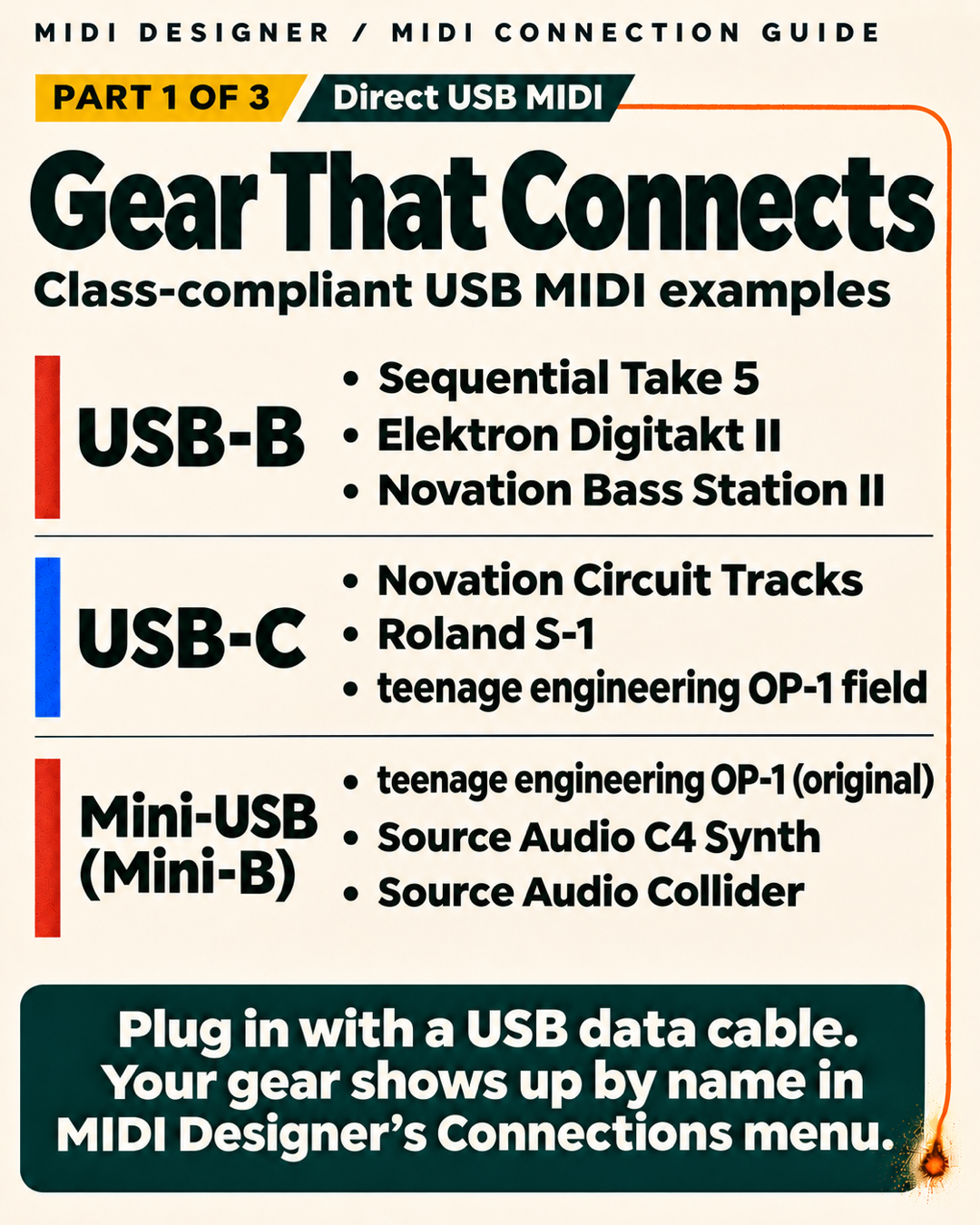
Direct USB MIDI. Plug class-compliant gear in with a USB data cable. It shows up by name in MIDI Designer’s Connections menu.
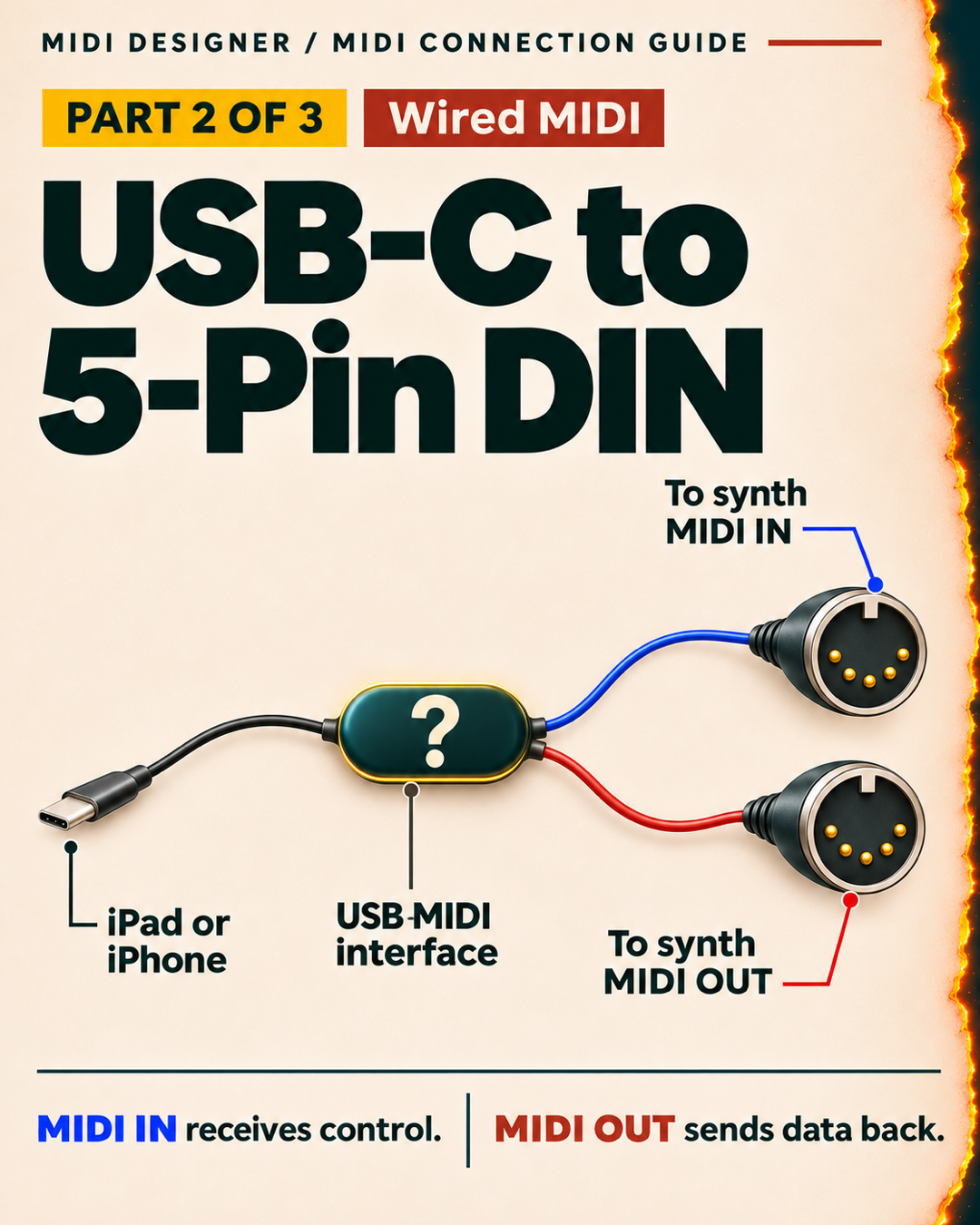
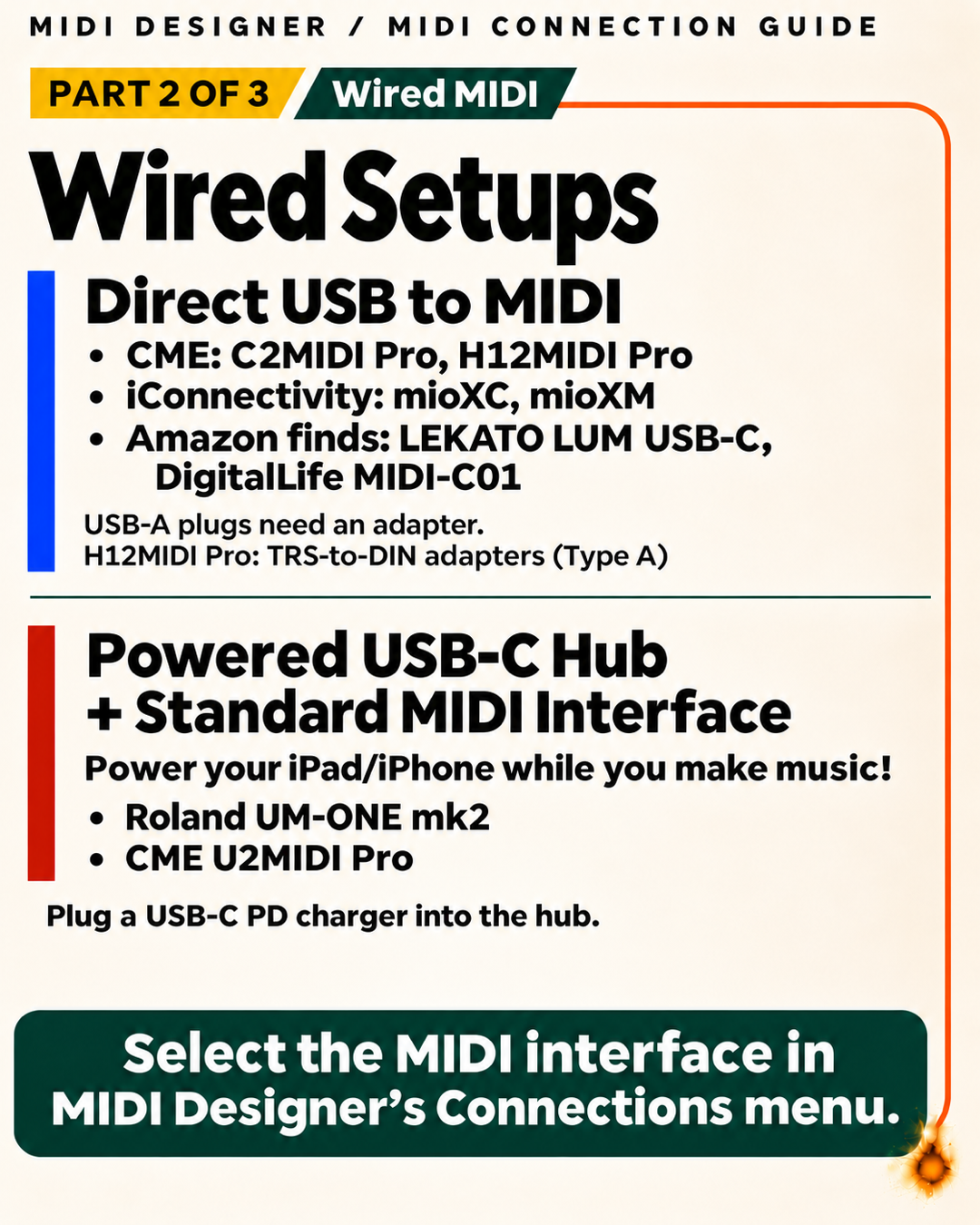
Wired MIDI. Use a USB MIDI interface for gear with 5-pin DIN. A powered USB-C hub can keep your iPad or iPhone charged while you play.
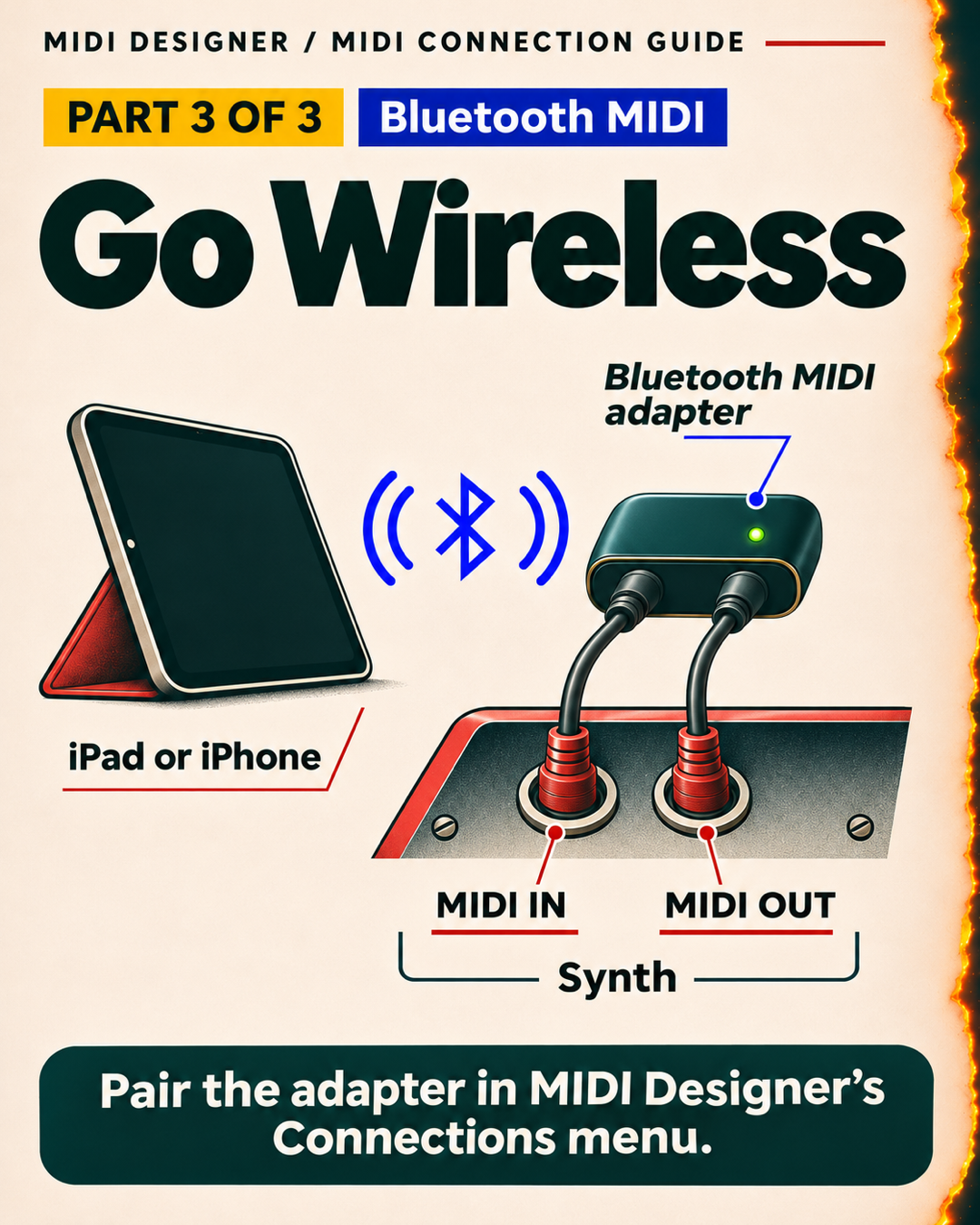
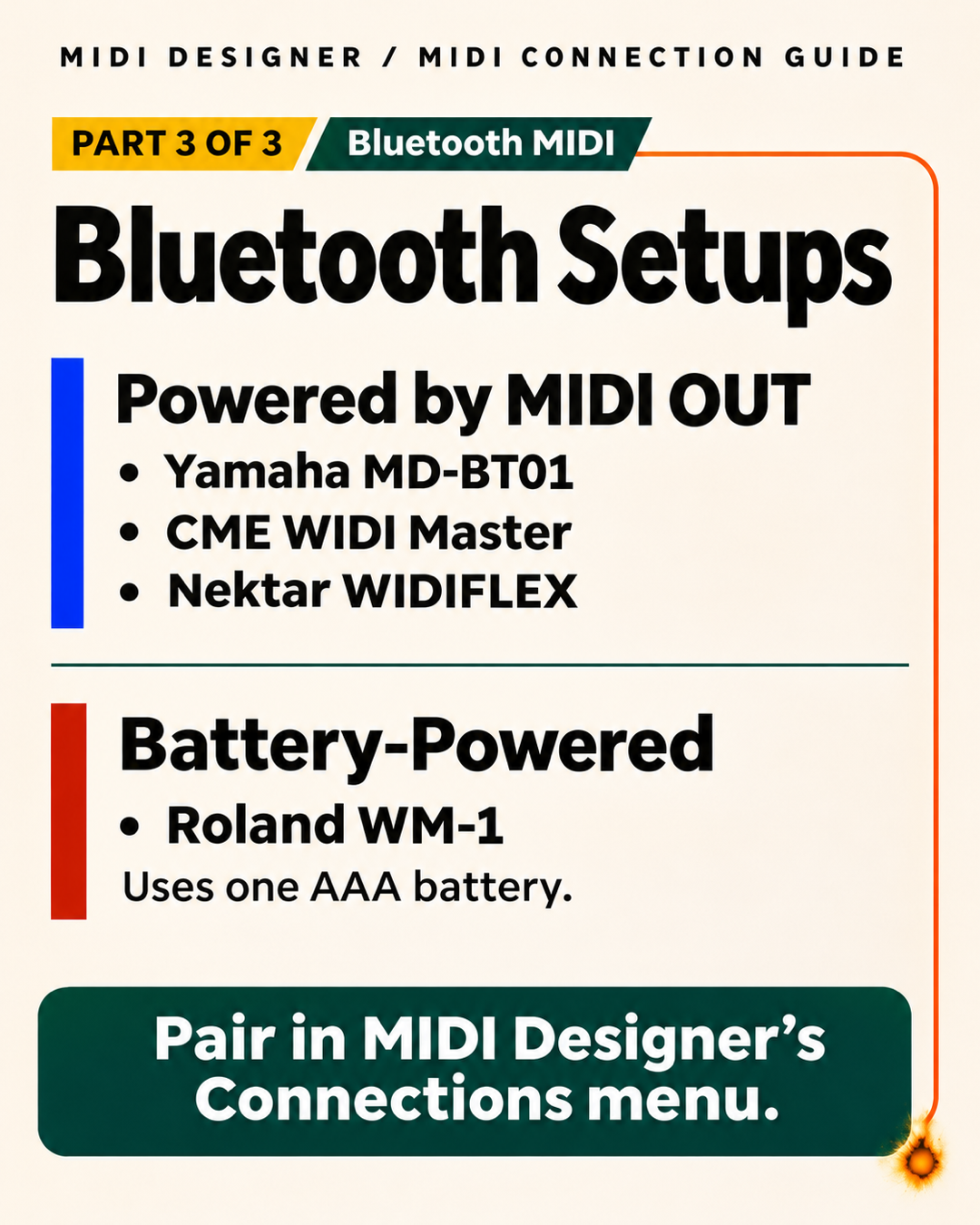
Bluetooth MIDI. Connect a compatible adapter to your gear and pair it in MIDI Designer’s Connections menu.
MIDI Designer is best on iPad and Mac, where you have more room for controls, and fully usable on iPhone.