Table of Contents
Chapter 7: Relationships with Supercontrols

What are Supercontrols and Subcontrols
Supercontrols and subcontrols are an essential part of making a custom rig in MD for almost all users. Supercontrols unlock almost all of the advanced functionality and power of MD.
- Supercontrol — A supercontrol is a control that can control the values of another control or controls. A supercontrol's value can be changed directly, from external MIDI, or via another supercontrol.
- Subcontrol — A subcontrol is a control whose value can be changed by another control or controls. With a few exceptions (with Button Groups, particularly), the subcontrol's value can be changed directly, as well.
Super-sub relationships are set up in Design Mode
They allow for all types of relationships
- one-to-one (A → B)
- one-to-many (A → B and C)
- many-to-one (A and B → C)
- many-to-many (A and B → C and D)
Supers and subs allow for sequential chaining, so A may control B, which in turn controls C
Not Allowed
Cyclical chaining (A → B → C → A)
Rules for Supercontrols and Subcontrols
- No Cycle — A supercontrol may not have a subcontrol that controls the supercontrol (directly or indirectly).
- Design control is Supercontrol to Subcontrol — Subcontrols only change supercontrols when the supercontrols have only one subcontrol. Do not rely on a subcontrol to properly position a supercontrol.
- Pedalboards — Supercontrols on pedalboards are made to work with hardware. They save their previous value for the “current page” (the normal page above the pedalboard). They also only move controls on the current page. There are several options that deal with supercontrols on pedalboards (Config → Pedalboards).
Own Values
Supercontrols do not send their values, unless “Supercontrols Send Own Values” is selected (Config → Options). This is a layout-wide option.
Using Supercontrols and Subcontrols
Basic concept

- When a supercontrol sends the MIDI Absolute Maximum Value, it moves the subcontrol to its maximum position.
- When a supercontrol sends a MIDI value of 0, it moves the subcontrol to the minimum position
- Between the value of 0 and MIDI Absolute Maximum Value, the subcontrol position is scaled. For example, a MIDI value of 96 (75% of 0-127) will move a subcontrol to its 75% position.
- The subcontrol's maximum and minimum positions may (or may not) correspond to its maximum and minimum MIDI values, depending on how the control is configured. Named Ticks allows completely arbitrary relationships between the subcontrol position and MIDI values.
MIDI Absolute Maximum Value
The highest value the message type allows
- For most message types: 127
- For 14-bit message types: 16,383
- Other (ex: SysEx 3 or 4 byte V) 128^B - 1 where B is number of MIDI bytes
Example
Setup
- A supercontrol called VOLUME with an Absolute Max of 127
- VOLUME controls two subcontrols, GAIN and HI-CUT
- GAIN has a MIDI range of 20-120
- HI-CUT has a MIDI range of 100-50 (inverted!)
Example results:

Buttons
When a button drives only another button, then the MIDI values are not applicable. When the supercontrol is on, the subcontrol will be on.
A button driving a knob - MIDI Absolute MAX value scaling applies
Knob driving a button -
- MIDI Absolute MAX scaling applies, but …
- The button will transmit current value for each tick of the supercontrol knob - if this causes a problem, change the button to a two-tick knob
- The button will not trigger a subcontrol button until the MAX value is reached
More examples

Rescaling
Problem - hardware sends a MIDI value of 20-32, which is to drive a layout control full range. How can the MIDI value 20 = zero range, or the MIDI value 32 = full range?
Answer - add an intermediate rescaler control using NAMED TICKS.
- Create a knob with 128 ticks
- Only the MIDI values in the 20-32 ticks matter
- Tick 20 gets MIDI value 0
- Tick 32 gets MIDI value 127
- Remaining values are scaled between those two numbers (0, 11, 21, 32, 42, 53, 64, 74, 85, 95, 106, 116, 127)

Where do I get these MIDI scaled values?
Easiest way is to let MDP2 calculate for you.
- Create a temporary knob
- Set desired MIDI Min and Max & number of ticks
- select USE NAMED TICKS
- YES to Convert your current ticks?.
- Open the NAMED TICKS to see the desired MIDI scaled values.
(For example above, enter 20, 30, & 13.)
Creating Supercontrol Relationships
Go to the Relationships tab in the Control Properties Pane.

Relationships Pane
- In the Relationships tab, turn the Supercontrol toggle on (blue).
- Open the Subcontrols pane by tapping the Subcontrols button.
- Drag to Subcontrol Button
- Touch this button and drag it towards the desired subcontrol
- Release your touch when its on the desired subcontrol
- The subcontrols bounces to acknowledge the new relationship
- The new subcontrol appears on the Subcontrols Page.
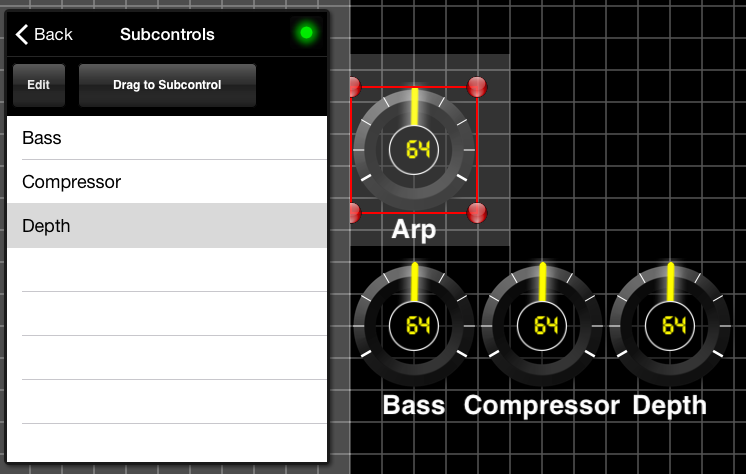
Subcontrols Page
Editing Supercontrol Relationships
Arrange and Remove Subcontrols
With the Supercontrol selected, access Control Properties → Relationships → Subcontrols.
The order of the subcontrols matters in certain relationships, including Button Groups.
Arrange and Remove Subcontrols
With the Subcontrol selected, access Control Properties → Relationships → Supercontrols.
For both Supercontrols and Subcontrols pages, you can swipe left to delete without hitting edit.
Defaults
- Buttons that are controlled by knobs are automatically grouped in a button group (like “radio buttons”). See Button Groups
- Momentary buttons that control a knob, slider, crossfader or the axis of an XY pad will automatically become a “stepper.” See Steppers
- When you make a control a supercontrol of an XY pad, it automatically picks up both axes. Normally, you would delete either X or Y immediately.
Cool Stuff With Supercontrols
- Use a different number of “ticks” for a supercontrol or subcontrol.
- Make supercontrol respond to the accelerometer.
- Use a different MIDI min and/or max for a supercontrol. You can get different, unique values by chaining supercontrols.
- Invert a subcontrol by inverting its MIDI min/max, inverting it by selecting inverted in the control properties, or by using invert supercontrol (which inverts how the current supercontrol affects its subcontrols).
- Use Crossfader Overlap (was called “crossfader pieces” previously) to smoothly transition between values on different controls. Here is a full explanation With Video and an advanced example
- Send multiple MIDI messages. See this answer on Bank Change and Program Change
- Pedalboards allow for “switched” subcontrol relationships. You can make multiple connections through supercontrols on a pedalboard. Only the connections on the two visible pages will be active.
Invert Supercontrol
Control Properties Pane → Relationships → Supercontrol Options → Inverted — This makes subcontrols react backwards to the direction that the supercontrol is being moved.
Subcontrols Send Current Value
Control Properties Pane → Relationships → Supercontrol Options → Send Current Value — Toggle in supercontrol options and in subcontrol options. Subcontrols of the supercontrol will send their current value instead of having their value affected by the supercontrol. [ Explanation ]
Subcontrols Send Default Value
Control Properties Pane → Relationships → Supercontrol Options → Send Default Value — Toggle in supercontrol options and in subcontrol options. Subcontrols of the supercontrol will send their default value instead of having their value affected by the supercontrol.