Table of Contents
Chapter 17: What's New in MDP2?

MIDI Designer Pro 2.0:
- Completely-redesigned look: Glow. More beautiful, practical and functional
- A new Home screen for easier navigation
- Extra Features Pack IAP Flyer: Image Panels, Pickers and Meters (free DAW plugin from musicIO)
- Preset Packs: share global presets with users of the same layout
- New Message Type: Combined Bank and Program Change
- Variable Tick Markers (up to max 25 ticks for knobs, 18 for sliders) to make more sense of your values faster
- Interact seamlessly with the Community: download and upload layouts, pages and preset packs directly from MDP2
- New features for power users: Accelerometer Zero, Medium Throw and Steppers Without Wrapping
- Improved MIDI send, receive, and logging to be even faster and more stable
- Hundreds of smaller new features, bug fixes and under-the-hood improvements for greater flexibility, stability and speed
2.1: Automatic Cloud Backup IAP
Keeps all of your layouts, presets and pages backed up. Access your files from anywhere. 30-day revision history. (Requires a free Dropbox account)
How to Use Cloud Backup IAP
- On the Config → Actions page, tap on “Automatic Backups to Cloud”
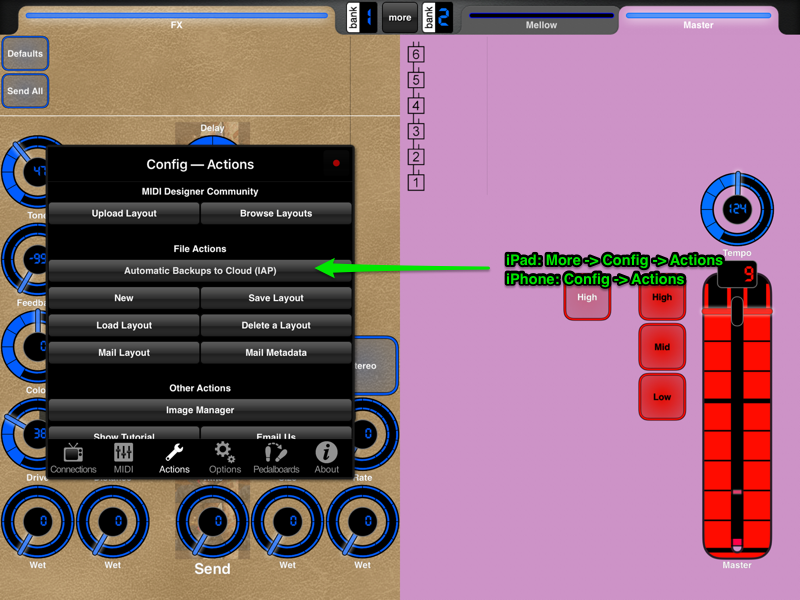
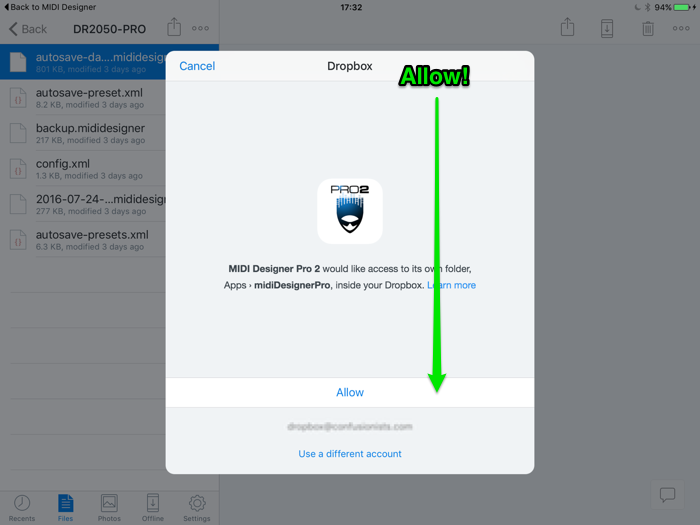
- This will open the Dropbox app (or Dropbox on the Web). Click “Allow” to give permission to MDP2 in your Dropbox.
(It will only access one subfolder of your Dropbox)
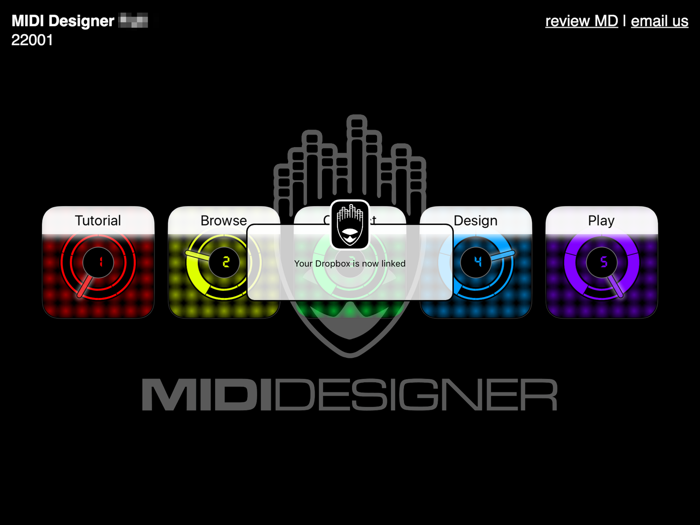
- Your dropbox is now linked!
The following rules apply to all layouts, pages, and presets that you save in MIDI Designer Pro 2:
- The autosave files (
autosave.mididesigner,autosave-preset.xmlandconfig.xmlandbackup.mididesignerwhen it happens) are saved to a directory specific to your device.
For instance, if your device is namedmusic-making-air2then you will find these files in your Dropbox under:/Apps/midiDesignerPro/music-making-air2
- Any other files you save will be stored in your Dropbox under:
/Apps/midiDesignerPro/FILENAME
How to Know If Your Dropbox is Linked
The Automatic Backups to Cloud (IAP) will be on (Blue)

2.2.0 Updates
MIDI Designer 2.2.0 allows all users to download and use layouts created with the Extra Features Pack IAP (authored in MDP 2.2 or later).
The authored layout must be saved with MIDI Designer Pro 2.2 or later.
The layout will be loaded with the global Design Mode Lock on. Turn it off in Config → Options → Design Mode Locked. If the layout uses EFP features, this will require you to purchase the EFP.
Image Panels and VU Meters
- Instructions for Image Panels and Custom Image
- Instructions for Meters Meter Controls and the VUplug
2.4: Undo
See the instructions for Undo here.
2.4.5
Vintage Throttle
Snap Back to Value
2.5.0
Display Zero
See the instructions for Display Zero here.
Movable Panels
See the instructions for Movable Panels here.
Rotary Action
Please find Rotary Action as one of the options under Advanced. This is only available for Knobs.
2.96: Stream Byter Plugin by Audeonic
2.3300
Functionality Updates
- Shorter “Snap to Value” times
- Wider labels, bold option for multi-line labels, and line break control on multiline button labels
Interface Updates
- iPad and iPhone - performance lock
- iPad - More button fix
- Mac - Dynamic window-sizing, continued refining Mac interface experience
- Mac, iPad, iPhone - Open layout from Files menu now works if app is closed
More Button on iPad
Since Apple enabled split screen and slide over, the MORE button has been competing with Apple's … multi-tasking menu. The MORE button is now gone.
- The MORE menu is accessed with the first swipe down from the top of the screen.
- The second swipe down will reveal iPad notifications screen.
- Tap on an empty spot in the layout to hide the menu
See image below
iPad Performance Screen Lock
To preclude accidentally returning to the iPad desktop while performing, the first swipe up in play mode has no action. (the bottom Apple bar will become visible). A second swipe up while the bar is visible will return to the iPad desktop.

Subcontrol Enable / Disable Button
A new option in the Relationships pane. This provides for dynamic enable & disable of MIDI transmission and subcontrol response from the control.
When a button is selected for Enable/Disable, and that button is off:
- The control will not transmit MIDI
- The control will not affect values of subcontrols
When the button is on or there is no selection in this option, MIDI transmission and subcontrol response occurs.

Randomize
A new selection in the Options as Super panel. When the supercontrol is activated, all subcontrols are sent to a random position within the control range.
Randomize works best as a momentary button, but can be enabled on most type controls.
Randomize on a knob will send a large number of random values as the control is moved above 64. Below 64 it has no impact.

MIDI Message (SysEx) Feedback
Caution: if you are not familiar with SysEx message formats, this is not the place to start. This is an advanced capability for proficient SysEx users.
We have had users implementing more complex control relationships by externally feeding selected MIDI messages from MIDI Designer output back to the input. The hack required external MIDI connections and filters to ensure only the desired messages were looped to avoid MIDI feedback loops.
With this update, any SysEx message with the header “F0 00 01 7E 77” will be routed from output of outbound StreamByter module to the input of the inbound StreamByter module.

- This header was selected since it unlikely to occur in any fielded MIDI device.
- F0 00 01 7E 77 is NOT a complete SysEx message. You need to provide additional data bytes for the values you wish to have available at the input.
- In an MDP2 SysEx control, you do not insert the leading F0 or trailing F7 - MIDI Designer will automatically provide these.
- In StreamByter rules you do have to account for the SysEx leading F0 and trailing F7.
- The feedback is after the outbound StreamByter module to before the inbound StreamByter module. Rules are not required in either location.
- StreamByter tests are limited to four bytes, but the feedback header is five bytes. In practice, you can test for only the leading four bytes. If those match, jump to byte six (or later) for your specific data tests.
- This format gives you flexibility to define feedback messages for your specific control approach.
- For a start, you could use one byte to identify a control, with the following byte indicating value, such as F0 00 01 7E 77 CC DD F7, where CC is the control number, DD is the data value.
- The example below shows another approach - wrapping a complete Cc message into the feedback message.
- Two approaches to generating feedback
- use an outbound StreamByter rule to spy on a Cc or other channel MIDI message and create the feedback
- use a SysEx layout control to directly generate the desired feedback
Feedback Example
We want to spy on a MIDI Cc on channel 2, Cc 07 (volume) and send that data value back to the input side of our layout for comparison with incoming MIDI.
Cc 07 on Channel 2 is a three byte message: B1 07 VV, where VV is the value.
Our outbound SB rules:
If M0 == B1 07 # CC 07 on channel 2
  Snd F0 00 01 7E 77 M0 M1 M2 F7
End
This wraps the entire message of interest, B1 07 VV (as M0 M1 M2), in the SysEx message .
Our input SB rules:
If M0 == F0 00 01 7E # Matched our feedback header
  # we are skipping the test for 77 in M4
  If M5 == B1 07 # match Cc 07 on channel 2
    # B1 07 vv from the output spy message is in M5 M6 M7
    # do stuff here with M7 as desired, etc.
    # stuff done
  End
End
In place of the output “spy” rule, we could generate the feedback SysEx directly in the layout with a control. This requires two additional controls
- The SysEx control (using the same format as above, our SysEx would be 00 01 7E 77 B1 07 V
- A supercontrol to drive both the original volume control and the feedback control